Related: Learn more about WordPress

WordPress Speed
WordPress Speed
How to check your website speed within WordPress
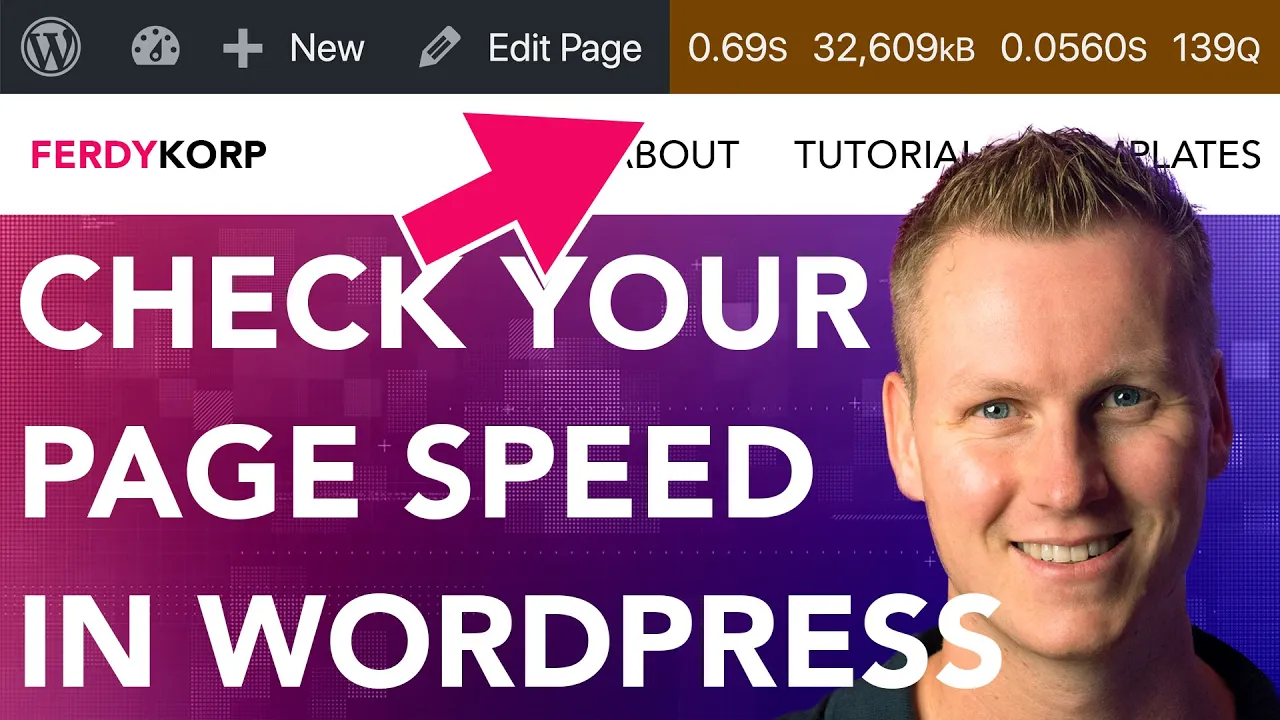
Most people test their website speed on an external speed test website. Every time they change something, they go back to that website and run the test again. That works, but it is slow. In this short tutorial I show you a free plugin that tells you how fast each page of your website loads, right from the top bar of your own WordPress website.
The plugin is called Query Monitor. After you install it, you can open any page, see the load time, make a change and check again within seconds.
Good to know: I recorded this video in 2021, so some screens in WordPress may look a little different today. If you want to go further and actually make your website faster, take a look at my newer tutorial on how to speed up your WordPress website using NitroPack or use the speed prompt.
Install the Query Monitor plugin
Installing it takes less than a minute. Here is what I do:
- Go to the backend of your WordPress website.
- Go to Plugins and click Add New.
- Search for Query Monitor.
- Click Install Now and then Activate.
When I installed it, the plugin had been updated just a few days earlier. That is always a good sign: a plugin that gets regular updates is a plugin that is still maintained.
Read the load time in the top bar
As soon as the plugin is active, you see a new item in the top bar of WordPress. It shows how fast the page you are on loads. Keep in mind that the backend page you are on is not the page your visitors see, so go to the front of your website.
I clicked through to my homepage and it loaded in about 0.57 seconds. That is quite nice. If you hover over the item in the top bar, you get a menu with a lot more information, like duplicate queries. You can dive into all of that, but for me the most important part is simple: the load time of the page, right there in my own website.
Test the effect of every change
This is where the plugin really helps. You do not have to go to the same speed test website again after every change. To show you, I opened my homepage with Edit with Elementor and changed the background:
- I added a background overlay with an image.
- I picked a blend mode.
- I changed the CSS filters to make the image a bit blurry.
After I clicked Update and went back to the homepage, the page was a little bit slower. So you can see right away that images make your website slower. If you add a lot of extra stuff to a page, you will see the load time go up. That is how you can work: change something, check the number, and decide if the change is worth it.
If you are new to Elementor, my Elementor tutorial for beginners shows you how editing a page works.
Frequently asked questions
Is Query Monitor free?
Yes. You install it for free from the WordPress plugin directory via Plugins, Add New.
Can visitors see the load time in the top bar?
No. The top bar is only shown to you when you are logged in to WordPress, so your visitors do not see it.
Why did my page get slower after adding an image?
Images add weight to a page, and effects like overlays and filters add even more. In my test, one background image with a blend mode and blur already made the homepage a bit slower.
Does Query Monitor make my website faster?
No, it only measures. It shows you what happens when you change something. To actually speed up your website, follow a speed tutorial or check the knowledge base for more background.