The WordPress Builder Skill
Download The WordPress Website Builder Skill
Improve Any Section
Make this even more unique, cooler, more beautiful, more creative and truly well designed, possibly with cool, unique interactive elements. The hierarchy must also be spot on, and it must be extremely user-friendly on all devices. Don't make it too busy and make sure every section is really adding value to the user experience.
How to make a WordPress website with AI
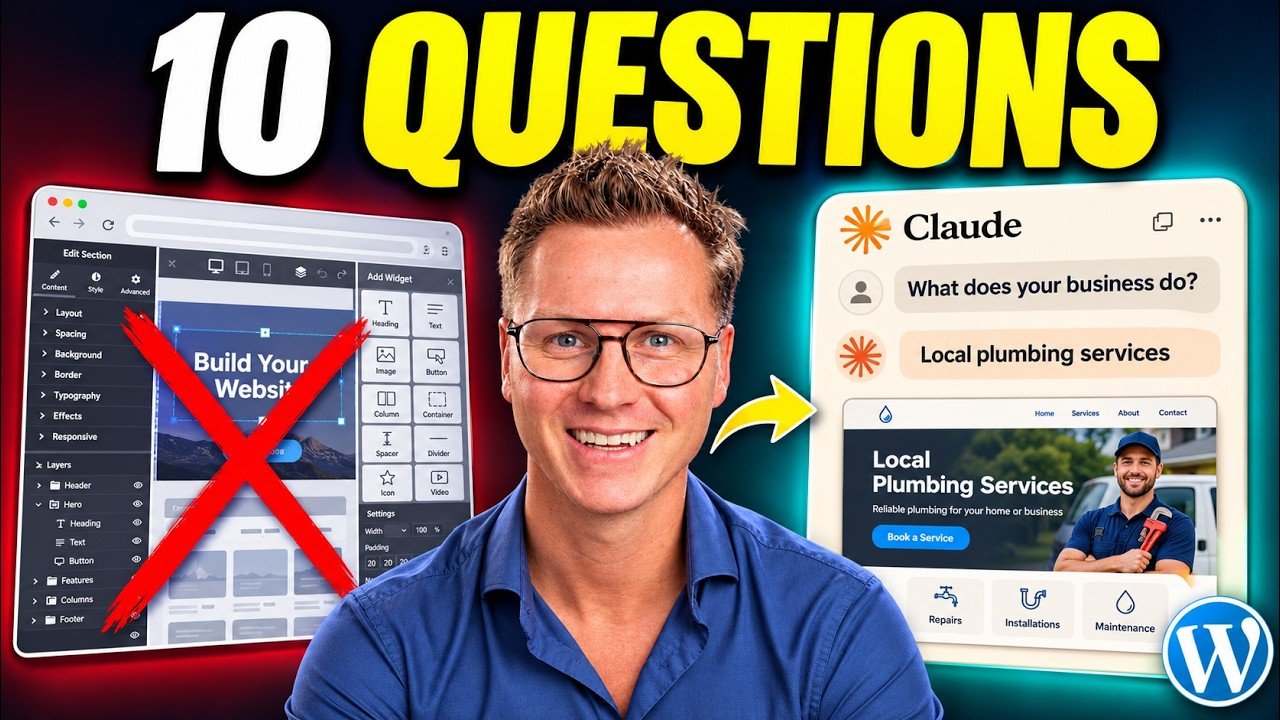
This is a real WordPress website. AI built it, and I can still change every word by hand. In this tutorial I show you the exact way I make websites right now: Claude designs the website, and then it puts that design on your own WordPress website with native blocks. No code and no page builder.

I have been teaching people how to make websites on YouTube since 2015, and this is the best way I have ever found. To make it even easier, I created a skill for Claude. It walks you through 10 steps, tells you exactly what to do and builds the website together with you.
What you need
- Web hosting with a free domain name. I use Hostinger. During the Black Friday sale a whole year was about $30.
- One month of Claude Pro, about $20. At the end of this post you see how little of that month the website actually used.
- My free WordPress Website Builder skill for Claude. You find the download at the top of this page.
We do this in three parts. First we claim your domain name and web hosting. While that is being set up, Claude designs your website. Then we put the design on your live WordPress website and make it even better.
Part 1: Get web hosting and a free domain name
To be live on the internet you need two things. A domain name is the address of your website, like ferdy.com. Web hosting is a fast computer that is turned on 24/7 and holds all the files of your website: the images, the colors, the styling and the animations.
- Go to ferdy.com/webhosting1 and click Claim deal. There is a 30-day money-back guarantee, so there is no risk.
- Choose a plan. You can always upgrade later. I recommend a plan with NVMe storage: that is up to five times faster than SSD storage, and you can host multiple websites with it.
- Choose how long you want it. A longer period gives you the lowest monthly price, but one year is fine to start with. Use the coupon code FERDY for extra discount.
- Create your account and pay with a credit card, PayPal, Google Pay, Apple Pay or another payment method.
- In hPanel, choose to set up your website manually, create a new website and choose WordPress.
- Claim your free domain name. Not sure yet? Use a temporary domain and claim the free domain later. Claude can even help you come up with a business name.
- Create your WordPress username and password and let Hostinger install everything.
After a few minutes your website is live. Do you see a warning that the connection is not secure? Wait a few minutes and refresh the page: the SSL certificate is still being set up. Do you already have hosting with WordPress installed somewhere else? Then you can skip this part.
Part 2: Let Claude design your website
Install Claude on your computer
- Go to claude.ai, create an account and choose the Pro plan.
- Download the Claude desktop app for Mac, Windows or Linux. We work in Claude Code, and that only works in the desktop app.
- Create a folder for your website on your computer. I have a folder called Websites with a folder for every website inside it, for example Plumbing Westland.
- In Claude, open the Code tab, create a new environment, give it the name of your website and select the folder you just created.
Add the WordPress Website Builder skill
A skill is a set of instructions that turns Claude into a specialist. Mine contains everything I learned about design, motion, variation (so not every website looks the same) and turning a design into a real WordPress website. Get it at ferdy.com/websiteskill or with the download link at the top of this page.
In Claude, click your name at the bottom left, go to Settings > Customize > Skills, click Add and upload the skill. Then type /ferdy in the chat, choose the WordPress skill and type Start.
Which model? I use Opus 5.5. It makes amazing websites and it is available on the Pro plan. Is there a newer Opus model by the time you read this? Ask Claude if it is more expensive. If it is, stay with Opus 5.5: the results are still great.
The first steps of the skill
- The purpose of your website. Tell Claude what your business does, who it is for and what makes you different. For my plumbing company that is: a plumber at your door within 60 minutes, day and night. No name yet? Ask Claude for a few examples.
- The visual direction. Give your own colors and fonts, or let Claude make two style boards to choose from. Look at the style, not the exact layout. Not happy? Ask for three other examples.
- The images. Use your own photos, connect Higgsfield so Claude creates the images for you, or use the free version of ChatGPT. With ChatGPT you get the exact prompt to paste. Save the image in your website folder with the name Claude gives you, for example hero-background.png.
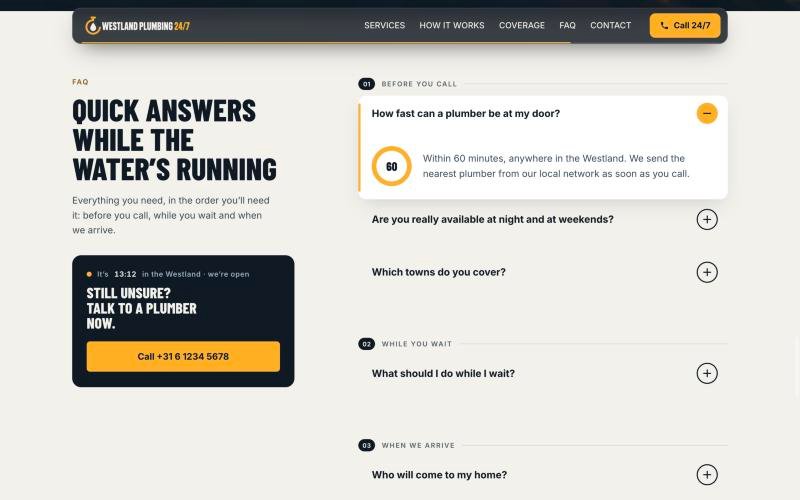
Then Claude builds a preview of the hero: the first part people see when they visit your website. Within three seconds it has to be clear what the website is about and what people can do. Give feedback just like you would to a web designer: make the headline bigger, use my real phone number, add an FAQ. Add a screenshot to point at something. When I wrote “when another FAQ item opens, close the one that is already open”, that is exactly what it did.
The magic prompt
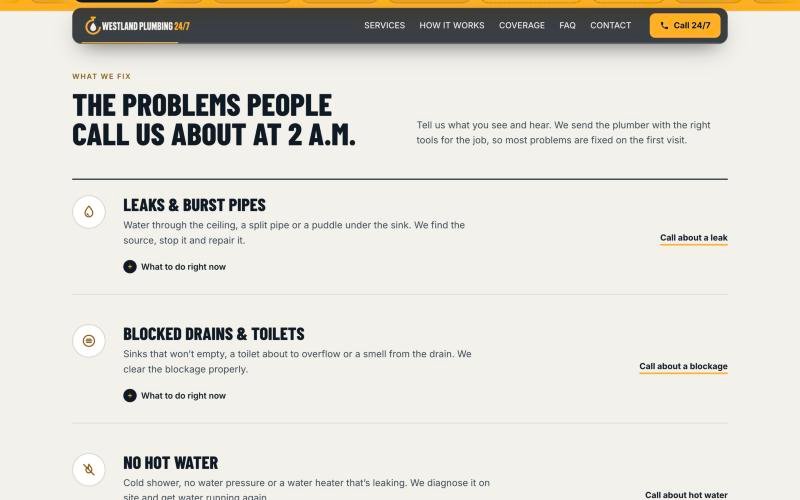
This is my favorite trick. Make a screenshot of a section you want to improve, drag it into Claude and paste the Improve Any Section prompt from the top of this page. It feels like magic: in less than two minutes a plain section turns into something you would pay a web designer for.
The prompt comes from Lars. He runs a web design agency and builds around 12 websites per month this way. In our Build Websites With AI course he shows how to make websites like this, how to get them found in the search results and how to sell them to clients for $2,000.
Part 3: Put the design on your WordPress website
Clean up your new WordPress website
Log in to Hostinger and open your WordPress dashboard (wp-admin). A new installation comes with a lot of extras. I always start clean:
- Plugins: select all, deactivate them and then delete them.
- Appearance > Themes: delete the themes you do not use.
- Your profile: add your first name and choose how your name is displayed. Want a profile photo? Create a free Gravatar account with the same email address.
- Pages and Posts: move the sample content to the trash and empty the trash.
- Dashboard: use Screen Options to hide the boxes you do not need.
Connect Claude to WordPress with Novamira
Claude needs a bridge to your website. That bridge is an MCP connection, and the free Novamira plugin makes it.
- Download Novamira at ferdy.com/novamira, then go to Plugins > Add New > Upload Plugin, install it and activate it.
- Go to Novamira > Configuration, turn on AI abilities for this site and save.
- Choose Claude Desktop and connect through OAuth. You get two details to copy.
- In Claude, go to Settings > Connectors > Add custom connector, paste the name and the URL and click Add.
- Click Connect and authorize the connection. Then change the tool permissions from Needs approval to Always allow, so Claude can work without asking every time.
Transfer the design
Back in Claude, choose Transfer to WordPress. Not sure if Claude sees your website? Just ask: “Are you connected with mydomain.com?” The skill installs the free Blocksy theme, uploads your images, builds the homepage with native blocks in the WordPress editor, sets up the header and footer and compares everything with the preview on desktop and on a phone. For my website this took about 20 minutes.
Because Claude uses the normal WordPress editor, you can click any heading, text or button and change it yourself. That also keeps your website light and fast. Publish the page and make it your homepage: go to Appearance > Customize > Homepage Settings, choose A static page and select your new page. Or simply ask Claude to do it.
Make your website even better
Now the most fun part starts. Tell Claude to continue with the skill from where you left off. Steps 8 to 10 add the rest of your website:
- Step 8: more pages and content. Services, coverage area, how it works and contact pages, a custom logo, service photos and your real Google reviews.
- Step 9: movement and refinement. Subtle animations and interaction. Tell Claude how much you like: I asked for animations, but not too much.
- Step 10: the final check. Claude looks at your website as a visitor, checks if everything works and helps you with SEO, so you get found in Google and in AI tools like ChatGPT.
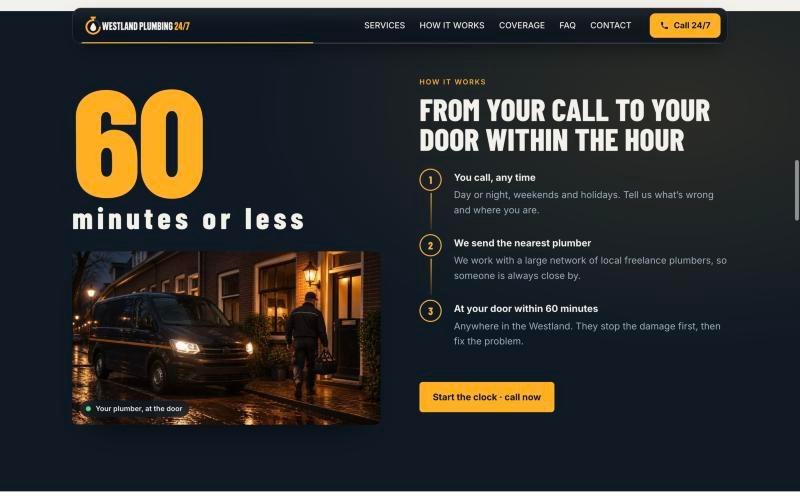
After that it is a conversation with a web designer who never gets tired. Make a screenshot, drag it into Claude and say what you want: center the logo, give the header a glass background and let it scroll with the page, make the buttons lighter, change all Skype buttons to WhatsApp, add a contact form that sends an email to you. Use the magic prompt on every section until you are happy. Tip: wait until one change is finished before you start the next one.
Do you not see a change on your live website? Clear the cache. In Hostinger, go to Websites > Manage > Performance > CDN and click Flush cache, then tell Claude you did it.
What did this website cost?
This really surprised me. I built the whole website in a few hours, and after all of that I had used just 15% of my weekly Claude limit. Claude Pro is about $20 per month, so roughly $5 per week. 15% of that is about 75 cents in prompts for the whole website. Add a year of hosting with a free domain, and you have a professional website for a fraction of what a web designer charges.
Next steps: get found and be compliant
I am building a prompt library with prompts you can copy and paste into Claude. Two of them are perfect for your new website:
- SEO and AI Search Optimization: installs an SEO plugin and optimizes your titles, descriptions, structure and schema, so you are found in Google and in the answers of ChatGPT, Claude and Perplexity.
- Legal Pages and Cookie Banner: asks about your business and your visitors, creates the legal pages you need and sets up a cookie banner.
Just finished? Also run the Launch Checklist before you share your website with the world.
Frequently asked questions
Do I need to know how to code?
No. You answer the questions of the skill and give feedback in normal words, by typing or with your voice. Claude writes everything and builds it with normal WordPress blocks.
Can I still edit the website myself?
Yes. The website is built in the WordPress block editor, so you can change every text, button and image by hand, without Claude.
Does this work with another web host?
Yes. As long as you have a domain name, web hosting and WordPress installed, you can follow along. I use Hostinger because it is fast and affordable.
Do all websites made with the skill look the same?
No. The skill creates different style directions based on your business, your colors and your images. And you can keep refining every section until it looks exactly the way you want.
Questions or ideas to make the skill even better? Leave a comment below the video on YouTube. I keep improving the skill, so it helps more and more people make amazing websites.