Connect Ollama To The Same Network As Odysseus
docker network connect odysseus-****_default ollama-****-ollama-1
Link Ollama With Odysseus
http://ollama-****-ollama-1:11434/v1
Odysseus tutorial: run your own private AI with Ollama
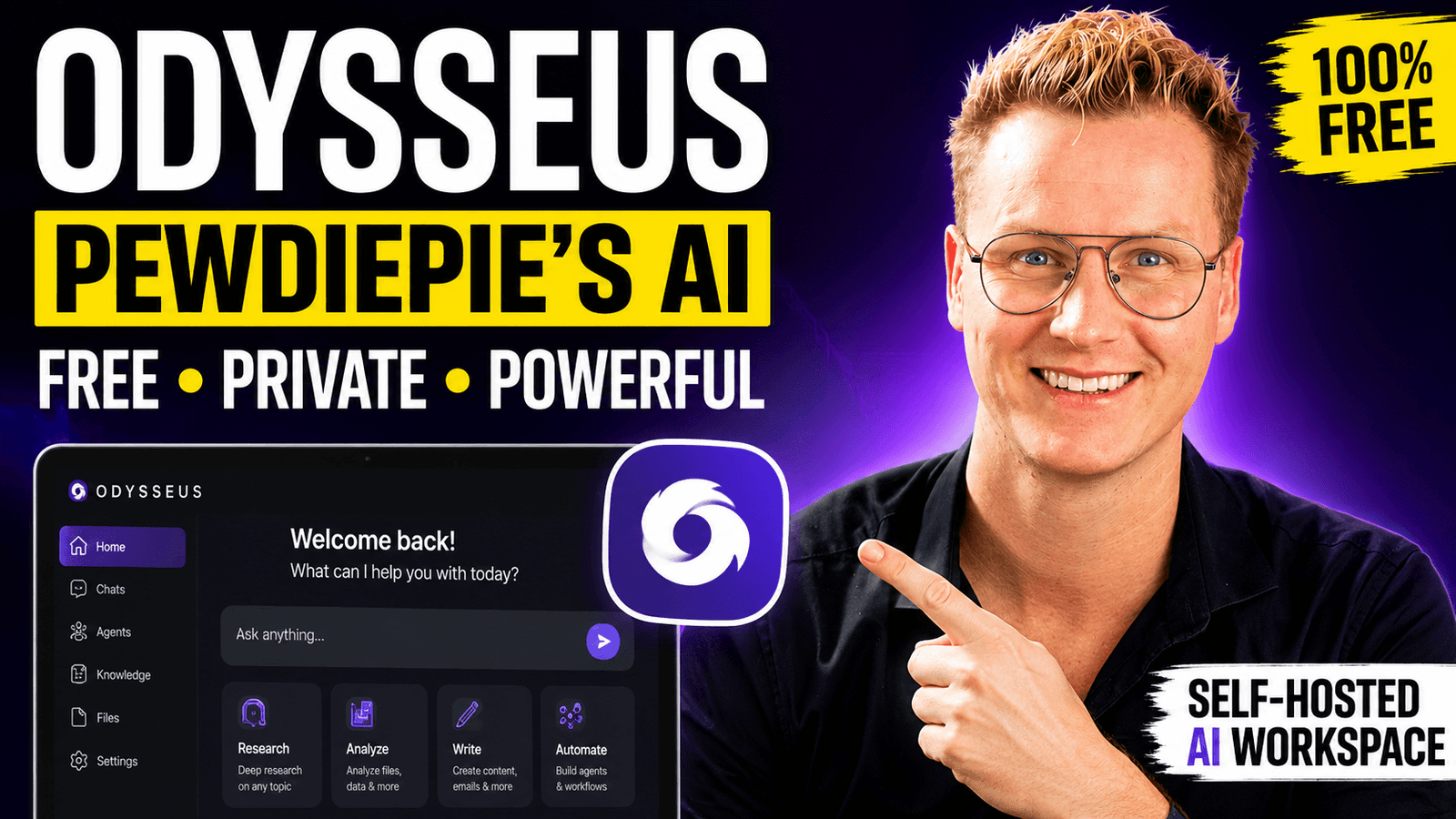
Odysseus is a free AI workspace made by PewDiePie, the Swedish YouTuber. Think of it as the web interface of ChatGPT or Claude, but self-hosted. You run it on your own computer or on a server, so your chats and your data stay yours. There is no tracking and no subscription.
In this tutorial I show you how to install Odysseus on a VPS, add Ollama next to it, download a free model and connect the two. The result: a private AI chat that works without API keys, tokens or credits.
What you need
- A VPS (virtual private server). I use Hostinger’s Odysseus VPS.
- Odysseus and Ollama, both installed as Docker containers with one click
- The two commands at the top of this page
What Odysseus can do
Odysseus became popular very fast. Within 10 days it had around 66,000 stars on GitHub. Besides chatting, it has tools and MCPs, deep research, email help (summarizing, replying and sending), model comparison, memory and self-evolving skills. The more you use it, the better it understands you.
The biggest point is privacy. You can use an external model through an API if you want, but everything you create inside Odysseus stays on your own machine. In this tutorial we go one step further and run the model on the server too.
Step 1: get a VPS with Odysseus installed
A VPS is a part of a computer that is online 24/7. It is fast and you can store your own software on it, in this case Odysseus and Ollama. Hostinger has a one-click installation, so you skip most of the manual setup.
- Go to ferdy.com/ody and click Choose plan.
- KVM 2 is selected by default, but KVM 1 is more than enough to get started. In the video it had 1 CPU core, 4 GB of RAM and 50 GB of NVMe disk space. You can always upgrade later.
- Click Have a coupon code?, enter FERDY and click apply for an extra 10% discount.
- Choose a period. 24 months gives the most discount. I went for 12 months and skipped daily auto backups.
- Register with your email and a password, fill in your billing details and choose a payment method.
There is a 30-day money back guarantee, so you can try it without risk.
After payment you land in the Hostinger panel. The username is admin and you get an admin password. Copy that password and save it somewhere safe, then click Deploy. Odysseus is installed on your server. In the Docker projects you will see Odysseus and Traefik. Traefik is an extra security layer that protects your other containers.
Already have a VPS? Go to the Docker manager, click Compose, then One-click deploy, search for Ollama, select it and deploy.
When the container is running, open it and sign in with admin and the password you saved.
Step 2: install Ollama and download a model
Ollama lets you run large language models locally. We install it as a second Docker container next to Odysseus.
- In the Docker manager, click Compose, then One-click deploy.
- Search for Ollama, click Select and then Deploy.
- Open the Terminal of the Ollama container and type ollama list. On a fresh install you will see an empty list.
- Download a model with ollama pull qwen3. I think Qwen 3 is the best free model for this tutorial. It is about 5 GB, which fits easily.
- Run ollama list again to check that the model is there.
I tested it right in the terminal by asking for the capital of France. It answered Paris, so the model worked.
Step 3: connect Ollama to Odysseus
This is the trickiest part. Both containers run on the same VPS, but they are not aware of each other. You need to put them on the same Docker network. Use the two commands at the top of this page.
- In the Docker manager, look at the names of your Odysseus and Ollama containers. Each has four letters or numbers that are unique to your server. These replace the stars in the commands.
- Copy the docker network connect command, paste it in the terminal and replace the stars with your own characters.
- Press enter. You get no response, and that is fine.
- In Odysseus, go to Settings and Add models.
- Paste the endpoint URL from this page and again replace the stars with your own characters. You do not need an API key.
- Click test. It should say online and that it found one model. Add that model.
My tip: copy and paste the container names instead of typing them. I guessed whether a character was a zero or a capital O, and I guessed wrong.
Step 4: chat with your private AI
Now select the Qwen model in the chat and say hello. You get an answer, and you can open the thinking process to see how the model came to it. I asked for the capital of Australia and it correctly said Canberra. Everything runs on your own server, so it costs no tokens or credits.
If you would rather use a hosted model, you can also connect Odysseus to OpenRouter. For more explanations of terms like VPS and Docker, have a look at the knowledge base. And for more AI tutorials, see the best ways to make a website in 2027.
Frequently asked questions
Is Odysseus free?
Yes. Odysseus itself is free and has no subscription. You only pay for the server you run it on. With Ollama and a local model like Qwen 3, you do not pay for tokens either.
Which VPS plan do I need for Odysseus?
KVM 1 is enough to get started with Odysseus and a model like Qwen 3 8B. You can upgrade later if you want to run bigger models.
Why can Odysseus not find my Ollama model?
Most likely the containers are not on the same Docker network, or a character in the container name is wrong. Run the network connect command again with the exact names copied from the Docker manager, and check the endpoint URL in the Odysseus settings.
Is my data private with Odysseus?
When you run both Odysseus and the model on your own server, nothing leaves that server. If you connect an external model through an API, your prompts go to that provider, but the data inside Odysseus is still stored on your own machine.